Minggu, 25 Mei 2014

Tutorial Membuat Koneksi WDS di Mikrotik

Teori Dasar Wireless Distribution System (WDS)

WDS (Wireless Distribution System) adalah sistem yang memungkinkan interkoneksi antar Access point (AP). Sistem ini digunakan untuk memperluas jangkauan area wireless, dengan menggunakan beberapa perangkat AP yang menjadi satu kesatuan, tanpa membangun backbone jaringan. Syarat dalam membangun jaringan WDS adalah AP harus menggunakan Band, Frequency, dan SSID yang sama.

Perbedaan Wireless non-WDS dan Wireless dengan WDS

Wireless AP non-WDS
Pada gambar di atas apabila user berpindahtempat dari area AP 1 ke area AP lain (AP2/AP3), maka user akan mengalami kehilangan koneksi beberapa saat sebelum terhubung ke area AP yang baru.

Wireless AP dengan WDS


Pada gambar di atas apabila user berpindah tempat dari area AP1 ke area AP lain (AP2/AP3), maka user seakan-akan tetap berada di area yang sama tanpa perlu kehilangan koneksi.

Itulah beberapa penjelasan dan teori singkat tentang WDS. Mikrotik dapat digunakan untuk membangun jaringan WDS. Fitur WDS pada wireless ini dapat kita aktifkan dengan masuk ke menu
wireless --> wlan1 --> tab WDS


Penjelasan Mode WDS Mikrotik :

  1. WDS Dynamic adalah Interface WDS secara otomatis akan terbuat ketika sudah menentukan perangkat AP lain yang kompetibel
  2. WDS Static adalah mode WDS yang Interface WDS nya dibuat secara manual
  3. WDS Dynamic-Mesh adalah mode WDS yang sama seperti WDS Dynamic, namun hanya menggunakan protocol HWMP+ (Pengembangan dari WDS standar)
  4. WDS Static-Mesh adalah mode WDS yang sama dengan mode Static, hanya menggunakan protocol HWMP+
HWMP (Hybrid Wireless Mesh Protocol) adalah protocol routing untuk mengimplementasikan topologi mesh di jaringan wireless yang didasari dari AODV (Adhoc On Demand Distance Vector) dan tree-based routing.

Untuk contoh penggunaan WDS pada Mikrotik akan saya share tutorial dari blog lain karena keterbatasan alat untuk praktek :D. 
Wireless Distribution System (WDS) pada Mikrotik yang akan dibuat adalah seperti topologi pada gambar berikut ini :


Metode WDS pada prinsipnya membuat access point dengan satu SSID yang sama, kita perlu mengetahui MAC Address masing-masing access point, anggaplah anda sudah mengerti, mari kita lanjutkan dengan mengkonfigurasi masing-masing access point.

Disisi MikroTik
Buatlah Interface Bridge dan pada tab STP pilih Protocol Mode di rstp.


Masukkan interface wireless ke interface bridge port yang kita buat.


Konfigurasi Wireless Interface, baik Mode Wirelessnya, Frequency dan SSIDnya.


Setelah itu di Interface Wireless pada tab WDS setting WDS Mode dan WDS Default Bridgenya.


Setting Di Access Point MikroTik sudah selesai selanjutnya kita lanjutkan ke konfigurasi di access point NanoStation2

Disisi Ubiquiti NanoStation2
Setelah kita login pada wireless Nanostation2 kita, pilih tab Wireless dan pada Wireless Mode Kita pilih Access Point WDS dan masukkan WDS Peers (MAC Address Interface Wireless MikroTik) yang dapat kita lihat di tab General pada Interface Wireless di Intreface Wireless MikroTik.

Rubah SSID dan Channel (Frequency) sesuikan dengan Konfigurasi Access Point MikroTik.


Setelah konfigurasi selesai lakukan test ping dari PC Desktop ke Laptop (pastikan Subnet IP dan Firewall di kedua komputer paket ICMPnya tidak di blok), jika berhasil kita ping dari kedua sisi maka konfigurasi kita sudah benar, jika belum berhasil silahkan ulangi atau cek kembali konfigurasi yang kita buat.

Demikianlah penjelasan dan tutorial Membuat Koneksi WDS di Mikrotik. Silakan dicoba dan semoga bermanfaat :)

Sumber :
Modul Praktikum WDS Teknik Jaringan DTE UGM
Read more

Kamis, 01 Mei 2014

Kaos Mikrotik Keren by MikrotikIndo #2

MikrotikIndo.blogspot.comkembali merilis kaos Mikrotik dengan desain yang keren abis. Bagi anda yang tertarik dan berminat memiliki kaos Mikrotik ini silakan lihat dan baca dulu detail kaos nya berikut ini :

SPESIFIKASI KAOS :
  • 100% Cotton Combed 30s, kualitas Distro, dijamin nyaman, adem dan tidak tipis.
  • Sablon Rubber berkualitas.


Pemesanan kaos dengan sistem Pre Order. 

Masing-masing desain akan diproduksi jika sudah ada pemesan minimal 30 unit. 

PEMESANAN UNTUK EDISI 2 INI SUDAH DITUTUP

SILAKAN PESAN EDISI 3 DISINI :
Jual Kaos Mikrotik Keren by MikrotikIndo Edisi ke 3
Read more

Senin, 21 April 2014

Get Free Rs10 Recharge [Offer Expired]


Hey friends, Today while surfing the net I got this trick. So I thought to share with you all Guyz. SO here is a working free recharge trick for you all.

Note: This offer is now EXPIRED

Follow the steps below:

1). Give a missed call to 18002000477
2). You will get a coupon code on your mobile.
3). Now go to freecharge.in and select recharge amount of Rs.10
4). Proceed without adding any coupon/offer.
5). Select "Apply freefund / promocode" at the payment step.
6). Add the code you received on your mobile and continue.
7). That's it. Your mobile will be recharged with Rs.10

Note: If you have so many mobile numbers in your home, then give missed calls from all of them and use the received promo code to get your recharge.

Enjoy..!
Read more

Sabtu, 19 April 2014

Cara Membagi Bandwidth Sederhana di Mikrotik

Membagi Bandwidth internet secara sederhana berdasarkan interface menggunakan Mikrotik. Hal ini yang akan kita bahas kali pada artikel ini. Sebelum saya lanjutkan, saya sarankan untuk membaca artikel sebelumnya tentang Cara Membatasi (Limit) Bandwidth Mikrotik dengan Simple Queue Mikrotik.

Oke, langsung saja kita mulai. Jadi kali ini kita akan membuat pembagian bandwidth secara sederhana berdasarkan interface yang digunakan. Untuk lebih jelasnya silakan lihat topologi jaringannya berikut ini :


Bandwidth internet yang saya gunakan adalah seperti berikut ini :


Koneksi Internet dari ISP 3 dengan Bandwidth 4 Mbps (Download) dan 1 Mbps (Upload).
Nah, dari koneksi internet itu, saya akan membagi bandwidth nya menjadi 3 dibagi per interface. Jadi disini saya menggunakan 4 interface ether.
-> interface ether1 : koneksi ke internet (DHCP Client)
-> interface ether2 : koneksi ke client 1
-> interface ether3 : koneksi ke client 2
-> interface ether4 : koneksi ke client 3

Masing-masing interface ether akan dikasih bandwidth
Download : 4 Mb/3 = 1333 Kb
Upload : 1 Mb/3 = 333 Kb

Oke, kita mulai langkah-langkah Cara Membagi Bandwidth Sederhana di Mikrotik :
1. Pastikan Mikrotik anda sudah bisa terhubung ke Internet (Seting DHCP Client, DNS, Firewall Masquerde, IP Address, dll).

2. Seting IP address untuk masing-masing interce yang tehubung ke client :
--> ether2 : 10.10.10.1/24
--> ether3 : 10.10.20.1/24
--> ether4 : 10.10.30.1/24


3. Buat DHCP Server untuk masing-masing client, masuk menu IP --> DHCP Server --> DHCP Setup
(Jika anda ingin konfigurasi IP client secara manual point ini bisa dilewati)


4. Untuk Membagi Bandwidth, masuk ke menu Queues --> Simple Queues --> Buat rule baru

[Tab General]
--> Beri nama rule nya
--> Target : ether2 atau 10.10.10.0/24
--> Max limit :
---> Target Upload : 333k
---> Target Download : 1333k


[Tab Advanced]
--> Limit At :
---> Target Upload : 333k
---> Target Download : 1333k
Untuk membuat rule pada interface selanjutnya, tinggal klik saja tombol Copy terus ganti nama dan target nya supaya lebih cepat.


 5. Kalo setingan sudah beres, sekarang kita coba tes dengan melakukan Bandwidth test pada Client, dan hasilnya adalah sebagai berikut :

Hasilnya hampir sama seperti yang sudah kita seting sebelumnya yakni :
Bandwidth 1190 Kb (Download) dan 333 Kb (Upload)

Sekarang pertanyaan nya, kenapa pembagian nya dibuat per interface? Karena itu adalah permintaan klien saya :D. Waktu saya di Makassar, saya diminta oleh Polda Sulsel untuk membagi bandwidth internet menjadi tiga menggunakan Mikrotik RB750. Masing-masing dibuat sama rata per interface karena mau digunakan untuk koneksi Video Conference dengan Mabes Polri. Sekalian saya bantu seting juga video conference nya. Sedikit curhat boleh ya :D

Oke, sekian saja tutorial Cara Membagi Bandwidth Sederhana di Mikrotik. Semoga bermanfaat :)
Read more

Bihar Bharti Janta Party Official Website Hacked

Bihar Bharti Janta Party official website was defaced and Server was rooted by Pakistan Hackers and leaving a message on the website followed by the slogan “Pakistan Zindabad“.

#OP Modi was recently started by Pakistani Hackers targeting Modi’s related online websites.


Though the website gets restored, still the deface page or the content on that page can be read by going through the Mirror link.

 BJP Websites are being the frequent targets of Pakistani Hackers


Read more

Simple Upload 53 Shell Upload Vulnerability

This Vulnerability allows Hacker to upload Shell. Web Application vulnerability in"Simple Upload 53" PHP file allows an attacker to upload Backdoor shell code in your website.

NOTE: THIS IS ONLY FOR EDUCATION PURPOSES, AND FOR SAFETY PURPOSE. WE ARE NOT RESPONSIBLE ANY HARM DONE BY YOU.

Lets Start:-

1). Paste the below dork in the google and click search.
inurl:simple-upload-53.php
2). After you search in Google you will find many Websites containing Simple-Upload-53.php at the end of url. Now simply open any of them.


3). Now you can see the upload option in the site. Here is the vulnerability, it allows you to upload files.
You can upload Backdoor shell as ".php.jpg" or ".php.gif" etc.

4). The uploaded shell will be in this place:
http://www.site.com/files/[Your File]
After uploading the shell , You can hack/deface the site.
Read more

WebTester File Upload Vulnerability


Hello Reader,Hope you all are enjoying my posts.. here Im back with new file upload vulnerability..
called WebTester File Upload Vulnerability . SO lets start..

NOTE: THIS IS ONLY FOR EDUCATION PURPOSES, AND FOR SAFETY PURPOSE. WE ARE NOT RESPONSIBLE ANY HARM DONE BY YOU.

Follow the Instructions:-

1). GO to google and type the following dork..
Google Dork : inurl:go.php?testID= 
For More Results Use your Brain and create your own Dork..
Exploit :http://[target]/[path]/tiny_mce/plugins/filemanager/InsertFile/insert_file.php
2). Now, upload your html , txt or jpg files


3). To find you uploaded file :-
 http://target/path/test-images/[yourfile].html
Enjoy...
Read more

Hack Web Sites Using IIS Exploit [For XP Users]


Hello Readers, I heard some of you are not getting out tutorials because u have no knowledge about Web hacking and you wanna learn web hacking .. So today i decided to write this tutorial for no0bs.

Because in this tutorial we are going to learn about IIS Web Hacking Exploit the Easiest way to hack for Noobs..

NOTE: THIS IS ONLY FOR EDUCATION PURPOSES, AND FOR SAFETY PURPOSE. WE ARE NOT RESPONSIBLE ANY HARM DONE BY YOU.

By using this Exploit an attacker can upload shell , Deface web site delete data etc. etc can do every thing without login..:D . Yeah you heard Right.. I know you all are getting exited, So lets's start :-

Note:- this is only for Windows XP users. For Windows 7 user , i will post soon ...

Follow the Instructions:-

1). First Of all we need to find Vulnerable site. Go to google and type the following dork:-

Dork- Intext:"Powered by IIS

Actually there is no particular dork be Creative use mind and create your own unique dork :) ..

If you are unable to find Don't worry ..See the end of the tutorial i have posted some sites :)

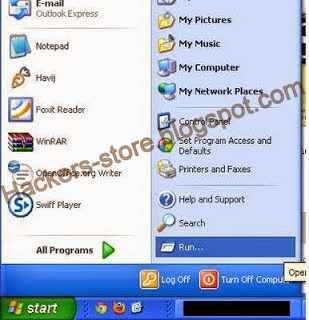
2). After Finding Vuln Site .Click on Start button And open "RUN"


3). Now type the following code in "RUN"
%WINDIR%\EXPLORER.EXE ,::{20D04FE0-3AEA-1069-A2D8-08002B30309D}\::{BDEADF00-C265-11d0-BCED-00A0C90AB50F}

4). Now a FOlder will open named "Web Folders"

Now Right Click in that folder then "New" And then  "Web Folder"..


5). Now paste the url of the Vulnerable site And CLick Next..


6). Now it will ask you to give Name for that Web Folder leave as it is Click Finish..


7). Congratulations! Now you are in the web site..If you wanna upload shell copy your Shell.php in to that folder and your shell will be uploded.. to path

Example : site.com/shell.php

Do the same to upload your deface also :D

Here are some site For Practicing ....  
http://www.houtai123.cn/
http://news.rhvacnet.com/
http://israelshamir.net/
http://intellectual.members.easyspace.com/
http://hoodstarsports.com/
http://jennylo.co.uk/
http://hurrelvisualarts.com/

Soon i will post list of Vuln. sites of IIS Exploit/....
Read more